
Using Pseudly
Pseudly helps you build an algorithm with blocks and read the same algorithm as pseudocode. The useful part is the connection: when you move a block, what changes in the written solution?
Find your way around
| Area | What it is for |
|---|---|
| Navigation | Program manages programs and exports. Help explains the application and its blocks. Help → About Pseudly explains the project and identifies the current release. Account gives access to sign-in and preferences. |
| Toolbox | Search for a block, browse Code and Data, or select one extension. Search covers the core system and the current extension. |
| Workspace | Drag blocks here and connect them. Start the main algorithm inside BEGIN/END. Program Attributes records its name, author, date and version. |
| Pseudocode | Read the written form as you build. Indentation shows which instructions belong inside decisions, loops and subprograms. Use the copy button beside Pseudocode to copy the text without line numbers. |
| Divider and workspace controls | Drag the divider to give blocks or pseudocode more room. Clean up blocks arranges disconnected stacks. The crosshair recentres the blocks and resets the zoom; + and − change the zoom. Zoom to Fit brings the complete block program into view. |
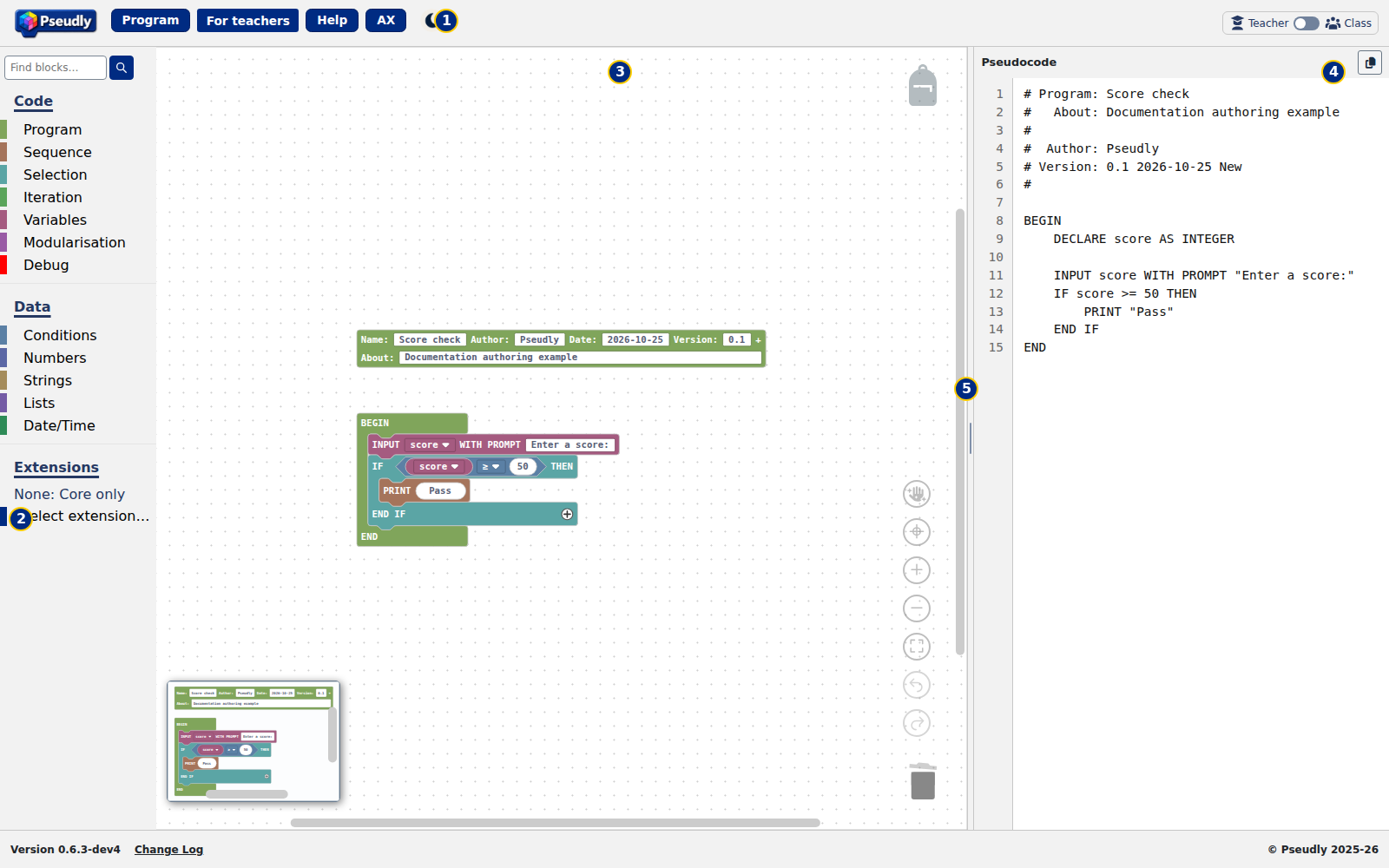
Design to code shows real blocks, generated pseudocode and equivalent language implementations, with an A4 poster and worksheet to download.
Build a small piece and read it
Choose a category to open its flyout, then drag a block into the workspace. Statement blocks connect in sequence; value blocks fit into inputs. An empty value input appears as <?> in pseudocode. That is a reminder to complete the algorithm, not a value to leave in a final solution.
Read down the pseudocode and predict what happens. A block can fit correctly and still express the wrong decision. Try values on both sides of a boundary, then explain why each instruction runs.
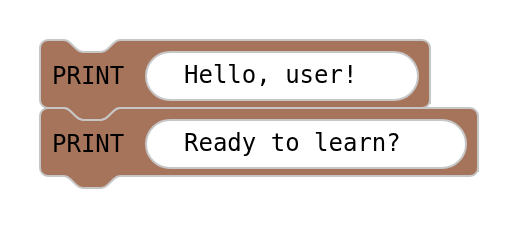
PRINT "Hello, user!"
PRINT "Ready to learn?"
Iteration allows instructions to run again. One iteration is one pass through a loop. A repeat block groups those instructions. Predict how many messages appear, then explain why PRINT is inside its claw.
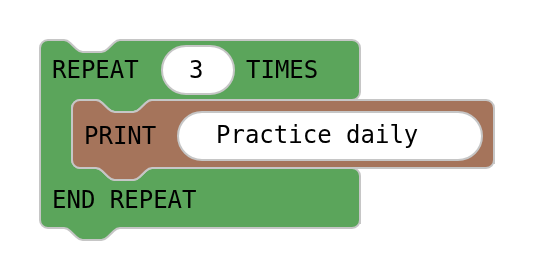
REPEAT 3 TIMES
    PRINT "Practice daily"
END REPEAT
Use the right click menu
Right-click a block to see the actions available for that block. The menu depends on what you selected; an unavailable action may be disabled. Use Duplicate when you need another copy, Delete to remove unwanted blocks, and the available collapse/expand actions to manage a larger structure. Some special blocks have additional controls. Use a comment block when you want a comment in the pseudocode.
Manage a larger workspace
Mouse-wheel zoom: With the pointer over the workspace, roll the wheel up to zoom in and down to zoom out. The view zooms around the pointer, so point at the blocks you want to examine. You can also use the + and − workspace controls.
Use the hand-sparkles button above the centre-blocks crosshair to Clean up blocks. It arranges disconnected stacks without changing their connections. Use Undo if you prefer the previous layout. This changes block positions; the crosshair and Zoom to Fit change the view.
The Undo and Redo arrow buttons sit between Zoom to Fit and the trashcan. They use the same history as the keyboard shortcuts and are disabled when there is nothing to undo or redo. Signed-in users can choose Vertical or Horizontal in Account → Preferences → Workspace Controls. Horizontal controls extend left from the trashcan and wrap when space is limited.
Clean up blocks and Zoom to Fit are available to everyone. Signed-in users can enable Backpack and Minimap in Account → Preferences → Tools. Both start switched off.
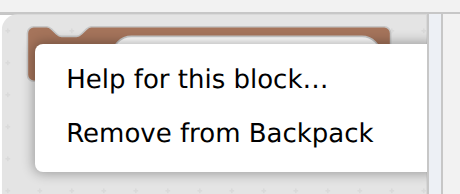
Backpack stores reusable block stacks separately from the program you are editing. Use the block’s Backpack action or drag a supported stack onto the Backpack. Open the Backpack to bring a stored stack into your program. To remove a stored stack, right-click it inside the Backpack flyout and choose its removal action. This removes the saved Backpack entry, not a separate copy already in the workspace.
A stack can refer to variables or subprograms in its original program. Those references may need attention when you reuse it elsewhere. Self-contained subprograms are easier to reuse. Backpack uses the same account storage allowance as saved programs; switching it off does not delete its contents.
Minimap gives a small overview of the program and helps you move around a large workspace. Use the main workspace to edit blocks. The toolbox flyout appears above the overview while you choose blocks.
Watch the saving status. Program changes are saved to your account only when you choose Save. Backpack changes save separately. If a Backpack save fails, use the offered recovery action before closing the tab.
Keyboard shortcuts
Click the workspace or select a block first. When you are typing in a field, the same keys can edit text instead. Browser shortcuts are separate from workspace actions.
| Action | Windows | macOS |
|---|---|---|
| Undo | Ctrl+Z | Command+Z |
| Redo | Ctrl+Y or Ctrl+Shift+Z | Command+Y or Command+Shift+Z |
| Copy selected blocks | Ctrl+C | Command+C |
| Cut selected blocks | Ctrl+X | Command+X |
| Paste copied blocks | Ctrl+V | Command+V |
| Delete selection | Delete or Backspace | Delete |
| Move focus through controls | Tab / Shift+Tab | Tab / Shift+Tab |
| Accept multiline String edit | Enter | Return |
| Add newline in multiline String | Shift+Enter | Shift+Return |
| Cancel a field edit or dismiss a cancellable dialog | Escape | Escape |
In the SQL CREATE TABLE columns editor, Enter adds a line and Shift+Enter accepts the edit. Its key behaviour differs from the multiline String editor. Use Program → Save for account saving; Ctrl+S/Command+S is not documented here as a Pseudly shortcut.
Run and inspect a core program
Signed-in users can enable program runtime in Account → Preferences → Tools. Run shows output. Inspect offers labelled Desk check and Live choices, with probe records in Desk check and current variable values in Live. Input requests and validation are shared across the views.
Speed offers Slow (the default), Fast and Live. Live runs without animation delay; Step still works. The current-instruction commentary appears in Inspect, leaving Run focused on program output. Gold alerts have a blank line after them. Successful END holds its final highlight and Live values for about two seconds, then clears them before resetting the controls. On a phone, scroll down through the stacked blocks, pseudocode and runtime panels.
Inspecting Programs explains probes, watches, breakpoints, recorded tables and manual tracing downloads.