Working with Programs
Keep an editable copy of your work. An image shows what your blocks look like; a blocks JSON file lets you open and change them again. Account saving and exporting a local file serve different purposes.
Choose the right action
| Action | When available | What it does |
|---|---|---|
| New | Everyone | Starts a new program. Save or export work you want to keep before replacing it. |
| Load | Signed in, with account storage enabled | Opens one of your account programs. Search the saved-program picker and select a row before choosing Load. |
| Save | Signed in, in an editable workspace, with account storage enabled | Creates or updates an account program. Saving is explicit; continuing to edit creates new unsaved changes. |
| Save a copy | While saving an existing account program | Creates a separate account program. The copy starts at Version 0.1 with no inherited history. |
| Import | Everyone | Opens a local blocks file through the supported import process. Import is not account Load. |
| Export blocks JSON | Everyone, from the workspace | Downloads an editable local document. Keep this when you may need to reopen the program. |
| Export image PNG | Everyone, from the workspace | Downloads an image for a report, lesson or submission. It cannot restore editable blocks. |
| Export code text | Everyone, from the workspace | Downloads pseudocode for reading, checking or submission. It cannot recreate the block program. |
| Export → Deskcheck (.docx) | Everyone, from the workspace | Creates a blank landscape manual tracing worksheet for the current program, with Step 1–10. It does not export recorded history; use Inspect → Table: Download for CSV. |
On a fixed content page, New, Load or Import can take you back to the workspace. Save and Export need the workspace open. A program in a restricted or read-only state may offer fewer actions.
Save deliberately
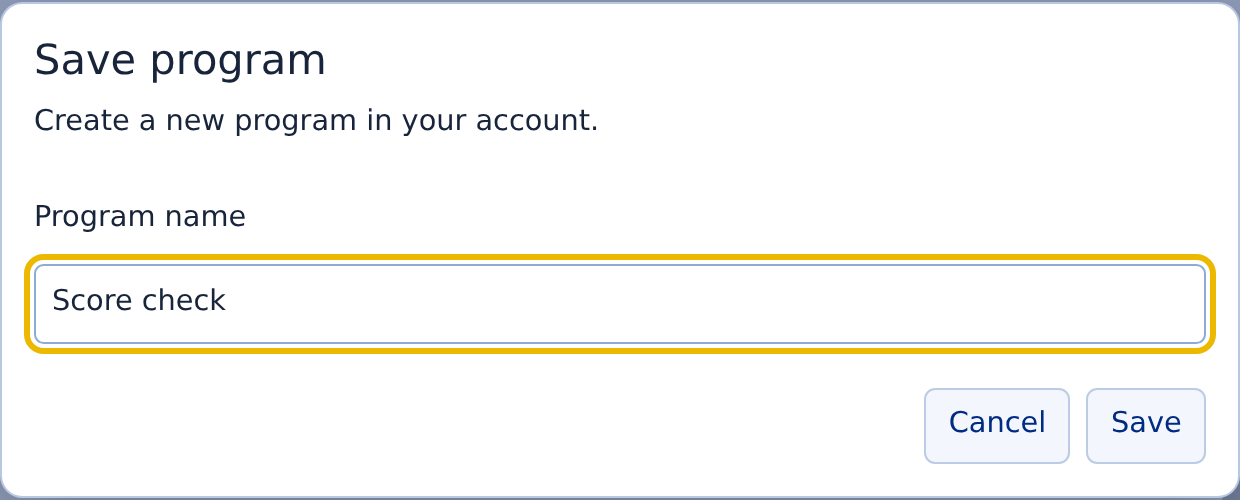
Use Save, then wait for confirmation that the program reached your account. Browser recovery can help after an interruption, but it is not an account backup. Export a blocks JSON copy when you need a portable backup or your teacher asks for a file.
Program Attributes and the main program
Keep one Program Attributes block in a program. It holds the program name, author, date, version and Summary. These details appear in the generated pseudocode and saved document. The Pseudly application release number is separate. An application update does not change your program’s version.

Select the lightbulb at the end of Program Attributes to open Program Notes. Use Summary for a short description and Program Notes for an English explanation of how the program works. Use headings, lists and emphasis to organise longer explanations. Select Save Notes to add the notes to the open program. Then save the program to your account or export Blocks JSON to keep a copy.
Program Notes are included when you reopen a saved program or import its Blocks JSON. Older programs open with an empty Program Notes editor.
To add a link, select some text and choose Link. Choose Insert image to add a PNG, JPEG, GIF or WebP from your device. Click the image and drag a corner or choose a percentage to resize it. Images and their display sizes are saved inside the program file. Use small image files to stay within the account save limit.
A new blank program begins at Version 0.1 with a New history entry. Use the plus control to record a new version and explain what changed. Editing the version number directly also asks for a change comment. Cancel the comment dialog to keep the previous version.
The block shows the current version and date; the saved program retains its history and the pseudocode includes the record. A history comment should explain a meaningful change, such as “Added input validation”, rather than simply “updated”. Saving the same program does not require a new program version every time.
Save a copy creates a fresh identity: Version 0.1 with no inherited history. The original keeps its version and history. After making a copy, check its name and Summary so its purpose is clear.
Keep one main BEGIN/END block. Instructions inside it describe the main algorithm. Subprogram definitions have their own BEGIN name/END name structure; they do not create a second main program. The same one-main and one-attributes rules apply when duplicating, pasting or using Backpack stacks.
Protect work when loading and saving
Loading an account program, importing a file or choosing an example can replace the workspace. Read the unsaved-changes prompt before continuing. Imported files and examples are not automatically attached to the original author’s account program.
If a saved program changed in another tab, Pseudly asks how to continue. Cancel keeps the current workspace. Load latest opens the saved copy after the usual checks. Save a copy preserves your work as a separate program. Do not assume a failed request saved successfully.
Your 20 MiB account allowance covers active saved programs and stored Backpack contents. Remove work you no longer need or export a local copy before deleting it. Turning off Backpack does not release the storage used by its saved contents.
Temporary gutter probes are not saved with a program; WATCH and BREAKPOINT blocks are. See Inspecting Programs for recording, Live values and tracing downloads.
A practical habit
Name the program, build a small part, read and test it, then save. Record a new version when the design changes enough to need an explanation. Before submitting, check that your blocks and pseudocode tell the same story.